


I’ve always known I should take malware more seriously, but I only truly woke up to it when a random download tried to open my browser to a sketchy page, and my old setup didn’t say a word. I work, browse, and download files on the same PC every day, so I wanted something to watch my system all the time, not just when I remember to run a scan. That’s when I decided to spend 30 days living with IObit Malware Fighter running in real time and see how much of a difference it actually made.
Why I Decided to Test It for a Month?
My habits aren’t exactly “low risk.” I try new tools, download attachments, plug in USB drives from clients, and have way too many tabs open at any given moment. I was relying on occasional scans and a bit of luck, but I kept wondering what was happening in the background when nothing was visibly wrong.
I chose IObit Malware Fighter because it’s specifically built as a free antimalware solution with always-on protection, not just a simple on-demand scanner. It’s real-time protection automatically scans and blocks malware before it even gets installed. Furthermore, it constantly guards against threats like viruses, ransomware, spyware, Trojans, adware, worms, and even newer malware such as some coronavirus‑themed attacks. That sounded exactly like the kind of silent guardian I was missing.
The Features Which I Actually Loved
Over those 30 days, a few official features moved from marketing text to things I actually felt in daily use.
- Real‑time protection and manual scans.
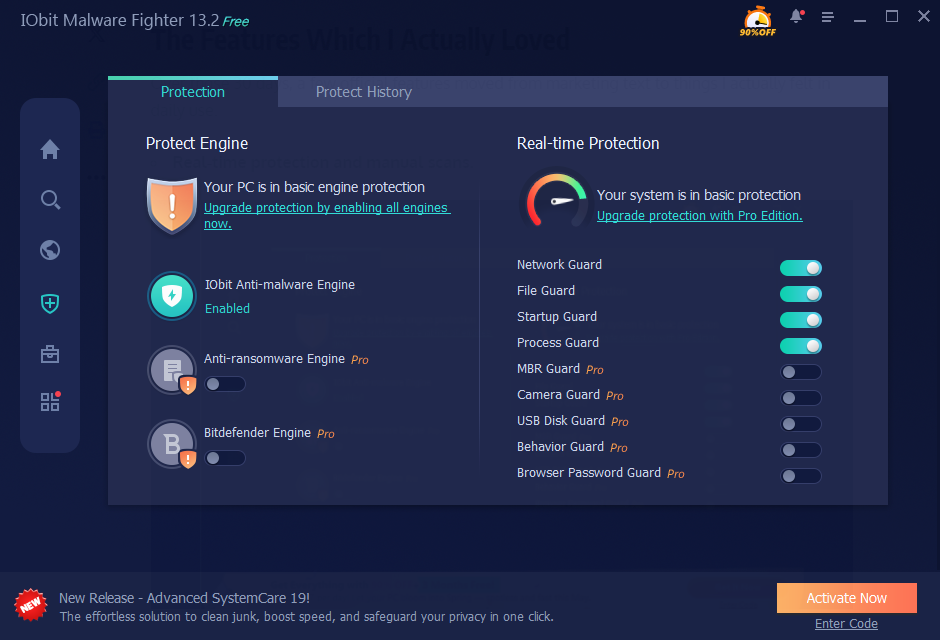

The product page is clear: compared to a manual scan, IObit Malware Fighter 13’s real‑time protection automatically scans and prevents malware before it’s installed, so the device stays protected at all times. I saw this in action when certain downloads and executables were scanned on the spot, with warnings popping up before they could run.
- Wide threat coverage.
It’s described as one of the best free malware removal tools that continuously protects against viruses, ransomware, spyware, Trojans, adware, worms, and other emerging malware. I can’t see everything it blocks under the hood, but I did see alerts for potentially unwanted programs and risky actions that I would probably have missed. - Double engines and a big database.
The anti‑malware protection overview states that it uses dual anti‑malware engines and a large online malware database to detect and kill all kinds of malware in real time. That reassured me that it wasn’t relying on a tiny local list of threats. - Lightweight enough for daily use.
With a (65.1 MB) installer and support for a broad range of Windows versions, it’s clearly designed to run on regular home and work machines, not just high‑end setups. Over the month, I didn’t notice it slowing my system to a crawl, which was critical for me.
How I Used IObit Malware Fighter During Those 30 Days
Here’s how I integrated IObit Malware Fighter into my routine and what my setup looked like.
Step1. First install and initial scan.
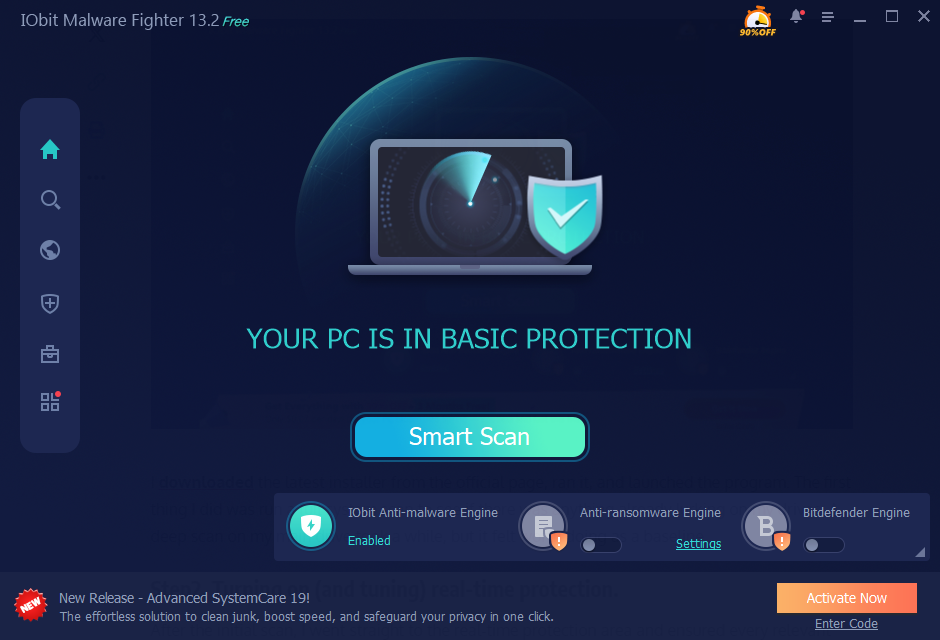
I downloaded the latest installer from the official page, ran it, and launched the program. The first thing I did was run a full system scan to see if there was anything already lurking on my drives. A deep scan on my main drive took a while, but it felt worth doing as a baseline.
Step2. Turning on (and tuning) real-time protection.
After the initial scan, I went straight to the real‑time protection area and ensured every relevant guard was enabled. The point of this test was to see how it behaved when it was always watching, so I didn’t turn off any core protections. This is where those double engines and broad threat coverage really come into play.
Step3. Letting it shadow my daily routine.
For the past 30 days, I have not changed my habits much. I was downloading tools, opening email attachments I trusted, visiting cloud drives, and plugging in USB sticks from work. Whenever something looked suspicious, I waited to see whether my Iobit Malware Fighter reacted. A few times, it intercepted and quarantined files or warned me before an executable could run, which is exactly what I wanted from real-time protection.
Step4. Using on-demand scans as backup.
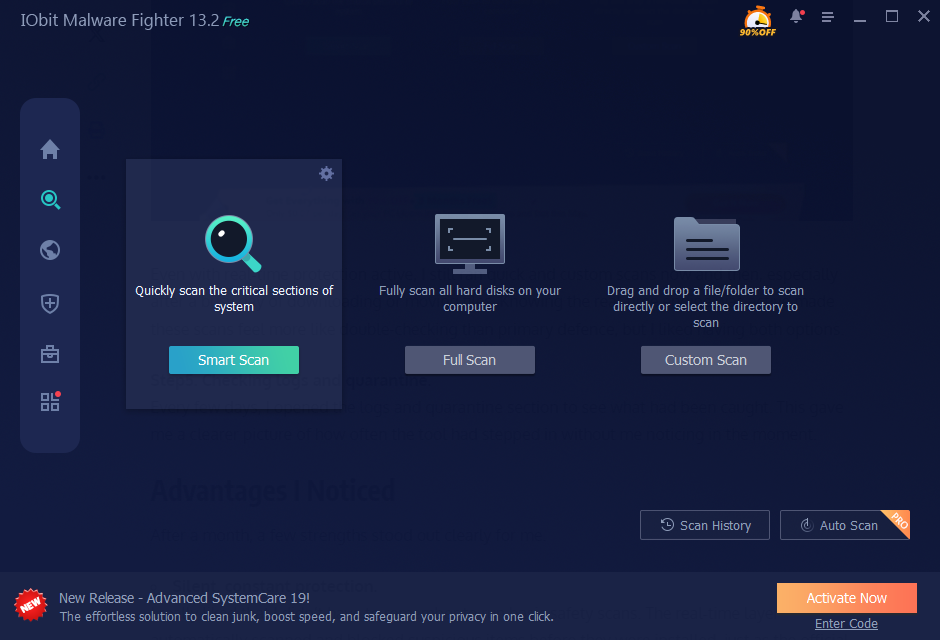
Even with real‑time protection active, I still ran quick and custom scans now and then, especially after a busy day of downloading or moving files. Knowing the real-time engine was active made these scans feel more like double-checking than primary defence, but I liked having both options.
Step5. Checking logs and quarantine.
Every few days, I opened the logs and quarantine section to see what had been caught. This gave me a clearer picture of how often the tool had stepped in without me noticing in the moment.
Advantages I Noticed
After a month, a few strengths stood out clearly for me.
- Silent, constant protection.
I really liked that I didn’t have to remember to run basic safety scans. The real‑time layer automatically scanned and blocked suspicious items before they were installed, just as the official description promised. - Broad coverage without extra complexity.
Knowing it was built to handle viruses, ransomware, spyware, Trojans, adware, worms, and even newly emerging malware types made me feel more comfortable opening files and using the web as usual. - Good balance between power and weight.
For something with double anti‑malware engines and an online malware database, it stayed surprisingly light on my system. I could work, browse, and stream without feeling like my machine was constantly fighting for resources. - Clear feedback when something was wrong.
The warnings, logs, and quarantine made it easy for me to understand what had been blocked and decide how to handle it, instead of leaving me in the dark.
Disadvantages I Ran Into
It wasn’t perfect, and there were some drawbacks in daily use.
- Occasional interruptions
Because real‑time protection checks things as they happen, sometimes I was interrupted by alerts just as I was about to run a program or open a file. The interruptions were for safety, but they did break my flow now and then. - Settings can feel a bit dense at first.
With multiple guards and options, the settings panel took some time to explore. Anyone who just wants “one button and done” might initially feel a little overwhelmed. - Full scans still take time.
Even with real‑time protection, deep full scans on a large drive are not instant. I learned to schedule them when I didn’t need the computer for heavy tasks.
What I Think After 30 Days?
Spending a full month with this tool running in real time really changed how I was thinking about system security. Well, before I treated malware checks as an occasional chore and now I see continuous full protection as the normal baseline, manual scans as an extra layer on top.
Knowing that the IObit Malware Fighter automatically scans and prevents malware before installation, covers a wide range of threats and relies on double engines and a large online database gives me more confidence in everything I do on my PC. It’s not an excuse to click carelessly, but it is a strong, steady companion in the background. If you want your Windows system to feel less exposed without changing your entire workflow, my honest takeaway is that giving this free antimalware, IObit Malware Fighter, a proper real-time trial, like the 30 days I did, is absolutely worth it.
