


We’ve all come across viral videos where AI mimics celebrity voices saying things they never actually said. I used to assume that building a custom AI voice model needed advanced skills and expensive equipment. Recently, I tried iTop Voicy to quickly clone my voice. It produces natural results within minutes, and in this review, I cover setup, features, process, pros, cons, and my honest experience.
First Impressions of iTop Voicy: Features That Impressed Me the Most
iTop Voicy is a versatile, free real-time voice changer for PC. It offers hundreds of high-quality, lag-free AI voices and sound effects for gaming, streaming, and content creation. Its built-in Voice Lab allows users to create custom voice models by adjusting pitch, timbre, and vocal thickness. Unlike basic filters, it uses deep learning to replicate human voice characteristics. It supports real-time voice-changing for gaming and calls, as well as text-to-speech with custom AI voice models.
Features I Liked
⦁ Custom Voice Creation: I can quickly create voice models from recorded or uploaded audio, adjust voice settings, and save them for easy use with hotkeys.
⦁ Smooth Real-Time Performance: Provides instant, ultra-low latency voice processing for natural, lag-free audio during gaming and live communication.

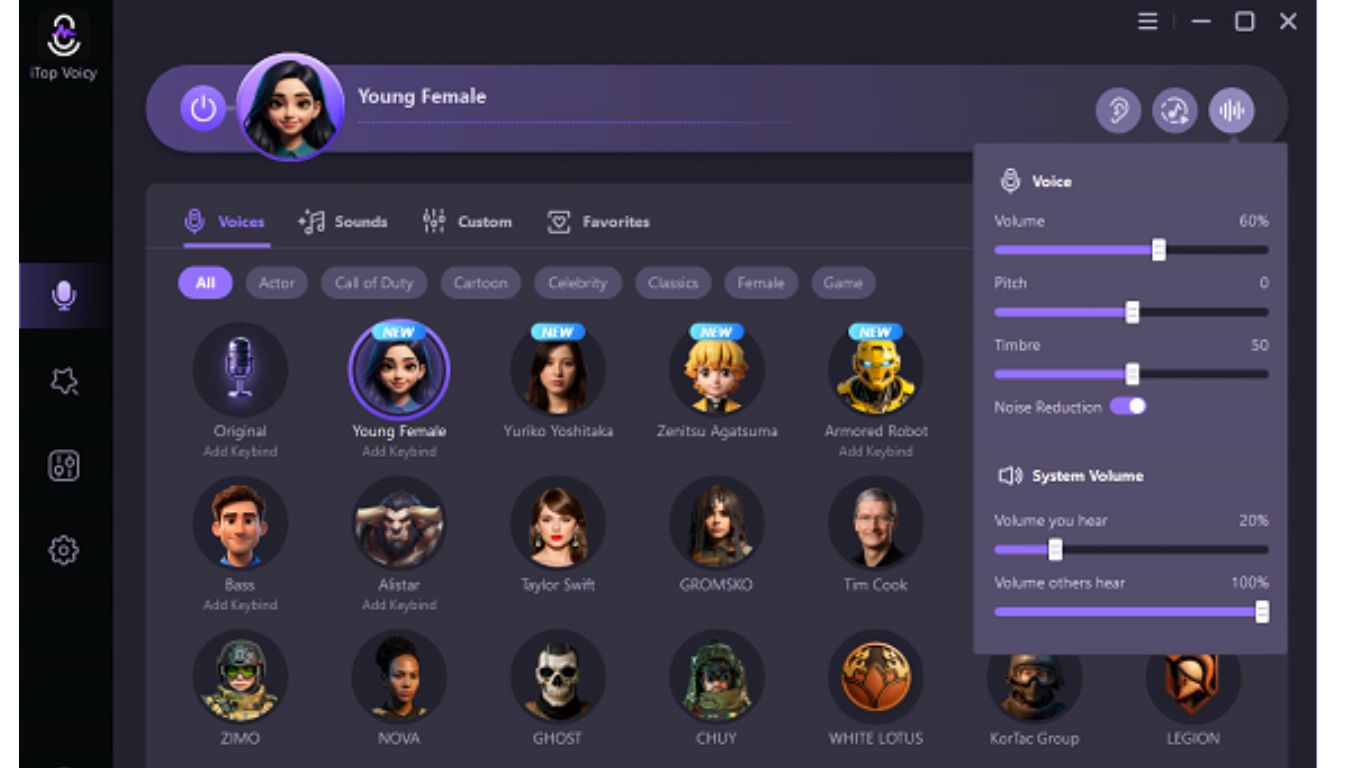
⦁ Sound & Media Tools: Offers a built-in soundboard with sound effects, various voices including AI voices.
⦁ Wide App Compatibility: Functions as a virtual audio device and supports 500+ apps, including Discord, OBS, Twitch, Zoom, and Skype.
Reasons Why I Wanted to Create My Own AI Voice Model
I wanted to create my own AI voice model for several practical reasons. Primarily, I aim to reduce the time spent on manual voice recording and editing by generating high-quality voiceovers instantly. Additionally, using an AI model helps me maintain uniform quality across all my videos, ensuring that my audio remains consistent regardless of fluctuations in my mood or energy levels. This also effectively eliminates the physical strain on my voice caused by long, repetitive recording sessions.
Beyond these functional benefits, there are also creative and strategic motivations for this shift. Having a digital model ensures that my content creation workflow does not come to a halt even when I am busy or feeling unwell. Furthermore, I am eager to experiment with different voice styles to enhance my creativity and satisfy my curiosity regarding how far AI voice technology has advanced, and how it can be leveraged to improve the overall production quality of my content.
Step-by-Step: How I Created My AI Voice Model
Here’s a step-by-step guide to building my AI voice model with iTop Voicy, covering everything from installation to final voice setup.
Step 1: First, I visited the official iTop Voicy website, downloaded the setup file, and installed it by following the simple on-screen instructions.
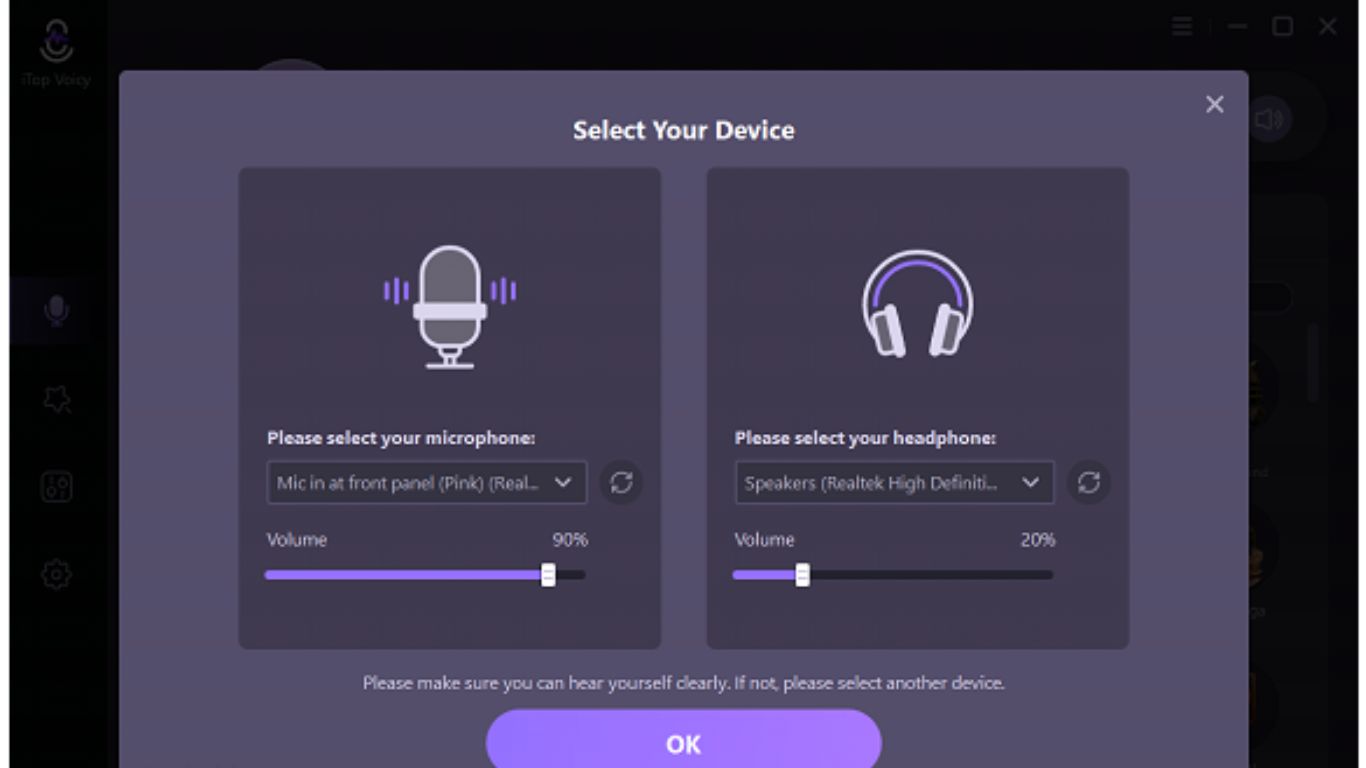
Step 2: Once I opened the app, I selected my mic and headphones and enabled noise reduction for a clean audio input.
Step 3: Next, I signed in and opened the Voice Lab, where I adjusted settings like pitch, tone, and vocal thickness to design my AI voice.
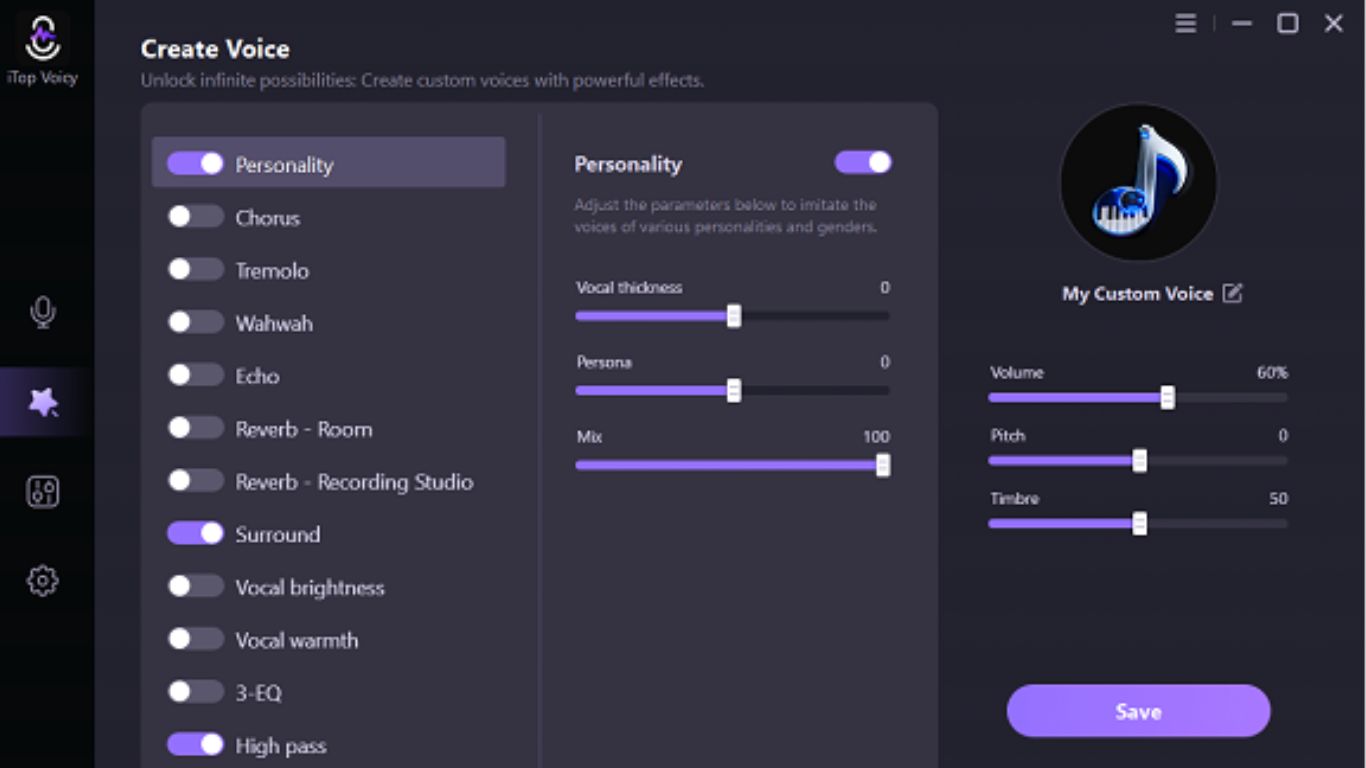
Step 4: Finally, I recorded or imported audio to refine the voice, saved the profile, and set hotkeys for quick switching during streaming or gaming.
Pros and Cons of iTop Voicy
Like any tool, iTop Voicy has both advantages and drawbacks. After spending time with it, I found several features that stood out and improved my experience, as well as some limitations worth noting. Below is a simple breakdown of the pros and cons based on my personal use.
I Like
⦁ Provides instant, lag-free voice changes while using a live microphone.
⦁ Uses AI to create realistic, high-quality voice profiles rather than robotic or distorted sounds.
⦁ Works seamlessly with popular apps like Zoom, Skype, Twitch, and OBS Studio, as well as online games.
⦁ Includes a wide library of sound effects that streamers and gamers can trigger easily.
⦁ Offers a simple, intuitive interface that is easy to set up without advanced audio editing skills.
I Dislike
⦁ Performance and output quality depend on a good microphone and a stable computer system.
⦁ Running multiple complex AI effects simultaneously can consume a large amount of system resources.
My Honest Experience Using the Custom AI Voice
My honest experience using the custom AI voice was positive overall. It improved content creation speed and efficiency by minimizing the need for manual recordings. I liked how the voice maintained a consistent tone and clarity across different scripts, which improved the quality of my videos. It gave me the flexibility to experiment with various voice styles effortlessly. On the downside, the results were not always perfect and sometimes depended on the quality of the input and system performance. Still, it proved to be a helpful tool that saved time and made my workflow smoother and more productive.
Conclusion
In conclusion, my hands-on experience with iTop Voicy showed how quickly a custom AI voice model can be created. This voice changer stands out for its ease of use, fast setup, and realistic voice output. Overall, it is a useful tool for creators who want to save time, experiment with voices, and improve their content quality with minimal effort and maximum convenience.
FAQs
Q1: Is iTop Voicy safe to use?
Yes, iTop Voicy is generally safe when downloaded from the official website, as it works as a voice changer and does not access sensitive personal data, though unofficial versions should be avoided.
Q2: Can I use iTop Voicy to clone a celebrity’s voice?
The software allows custom voice building, but using it to replicate celebrity voices may cause legal and ethical issues, so it is better suited for personal or original use.
Q3: Does the real-time voice changer work on Zoom?
Yes, iTop Voicy supports real-time voice changing and works with Zoom via its virtual audio device. Once selected as the microphone input, it can instantly modify your voice during calls, with the best performance achieved through proper settings and a stable internet connection.
